
For the touchscreen MacBook Pro, and every other Mac
Swipe secrets off your screen.
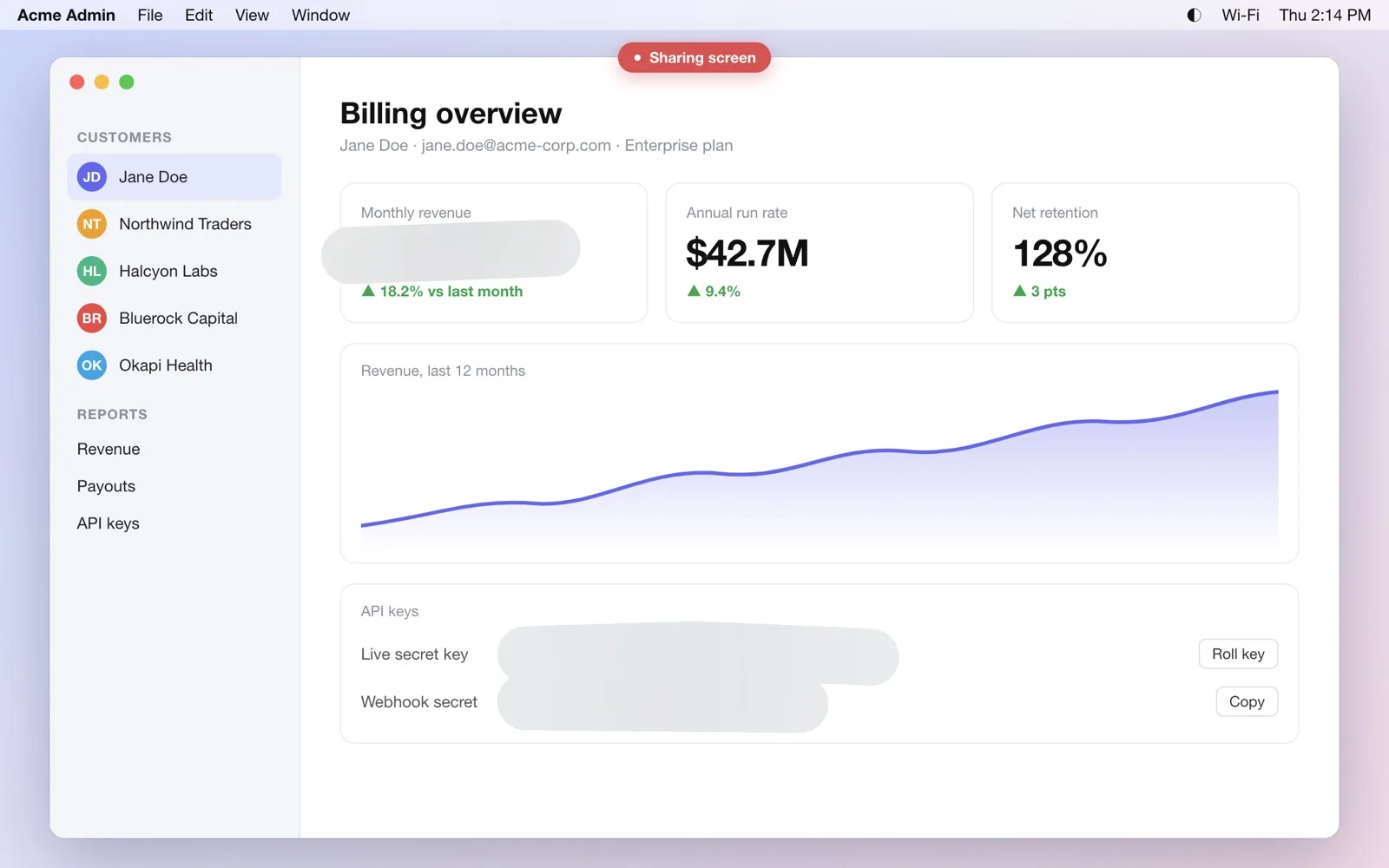
Smudge frosts API keys, revenue, client names and popups with one finger, live, while you share your screen, record a demo or turn your laptop toward someone. Your mouse keeps clicking straight through.
Free for 7 days, then one purchase. No subscription, no account.
At a glance
- What it is
- A Mac menu-bar app for live privacy during screen shares and demos.
- How you use it
- Swipe with a finger on a touchscreen MacBook Pro, or press ⌃⌥D and drag on any Mac.
- Where the frost shows
- On your screen, in full-screen and display shares (Zoom, Google Meet, Microsoft Teams), and in recordings.
- What it never does
- Read, record or upload your screen. It asks for no Screen Recording permission.
- Price
- Free for 7 days, then one purchase of US$9.99 (launch price). No subscription.
- Needs
- macOS 14 or later on Apple silicon. Touch needs the touchscreen MacBook Pro (macOS 27).
- Made by
- Sandmatter LLP, India.
Touch
Reach up. Swipe. It's gone.
Swipe
Swipe across anything to smear frosted glass over it. The patch follows your finger, or draws as a rectangle if you prefer.
Hold, then draw
Hold for about a third of a second, then draw to circle or underline in glowing ink. It fades after 3 seconds.
Double-tap
Double-tap a patch to wipe it away.
Hold and lift
Hold and lift to ping a spot with "look here" rings.
Your trackpad and mouse keep working the whole time. Clicks go straight through the frost to your apps.
Any Mac
No touchscreen? One shortcut.
⌃⌥D
On any Mac, press ⌃⌥D and drag with your mouse or trackpad to frost, or ⌃⌥A to draw. Tap the shortcut to keep it on until you press Esc, or hold it while you drag and let go to click normally again. A small pill at the top of the screen shows when the pointer is drawing. Every shortcut can be changed in Settings.
⌃⌥F
The panic button
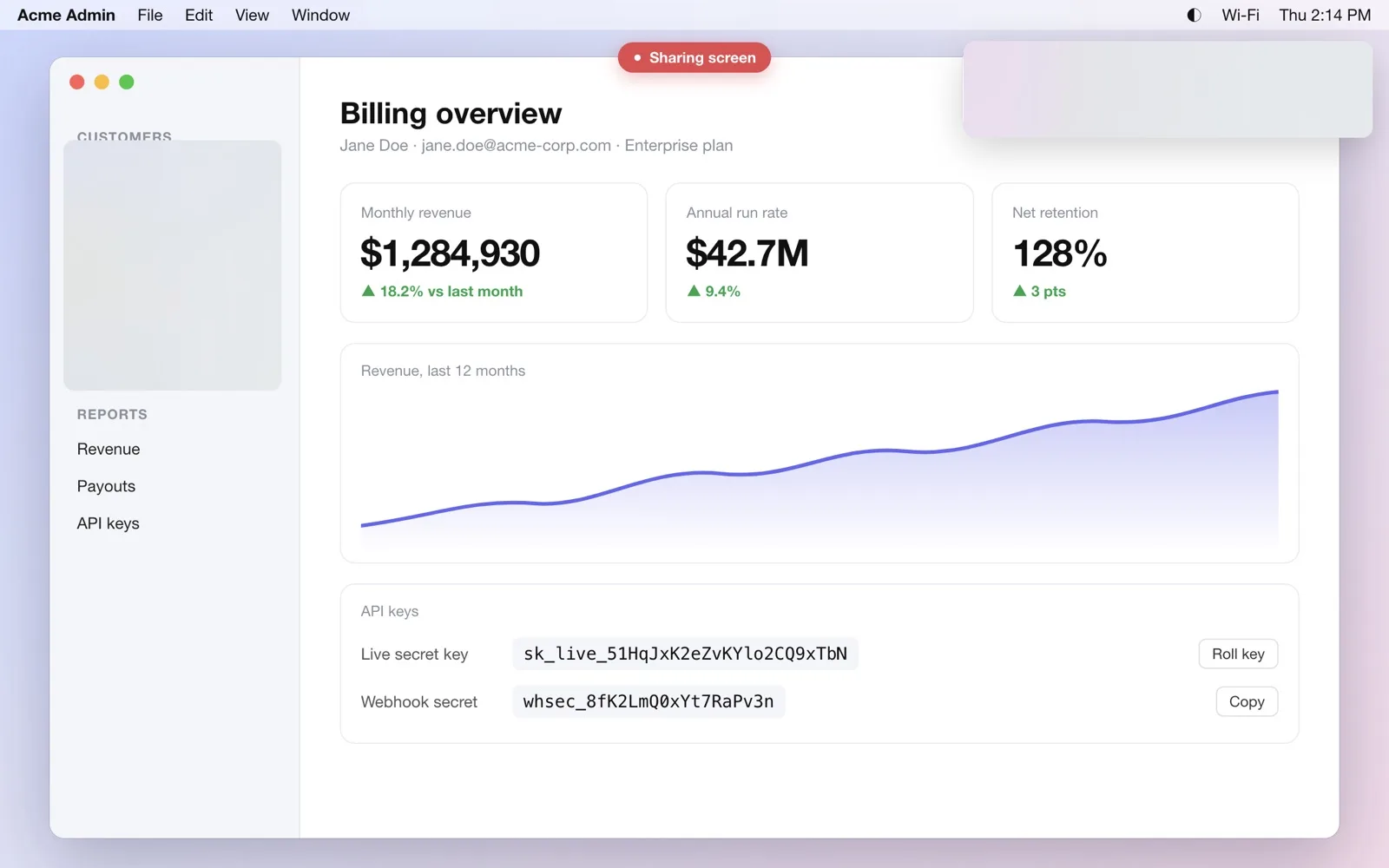
A message pops up at the worst moment? ⌃⌥F frosts every display at once. Press it again to clear.
Settings
Make it yours
Frost
Frosted Glass, Frosted + Colour or Solid Redaction; three blur strengths (Standard, Strong, Maximum); brush or rectangle; any size; light, dark or system tone. Every style keeps frost underneath, so no setting makes the text readable again.
Ink
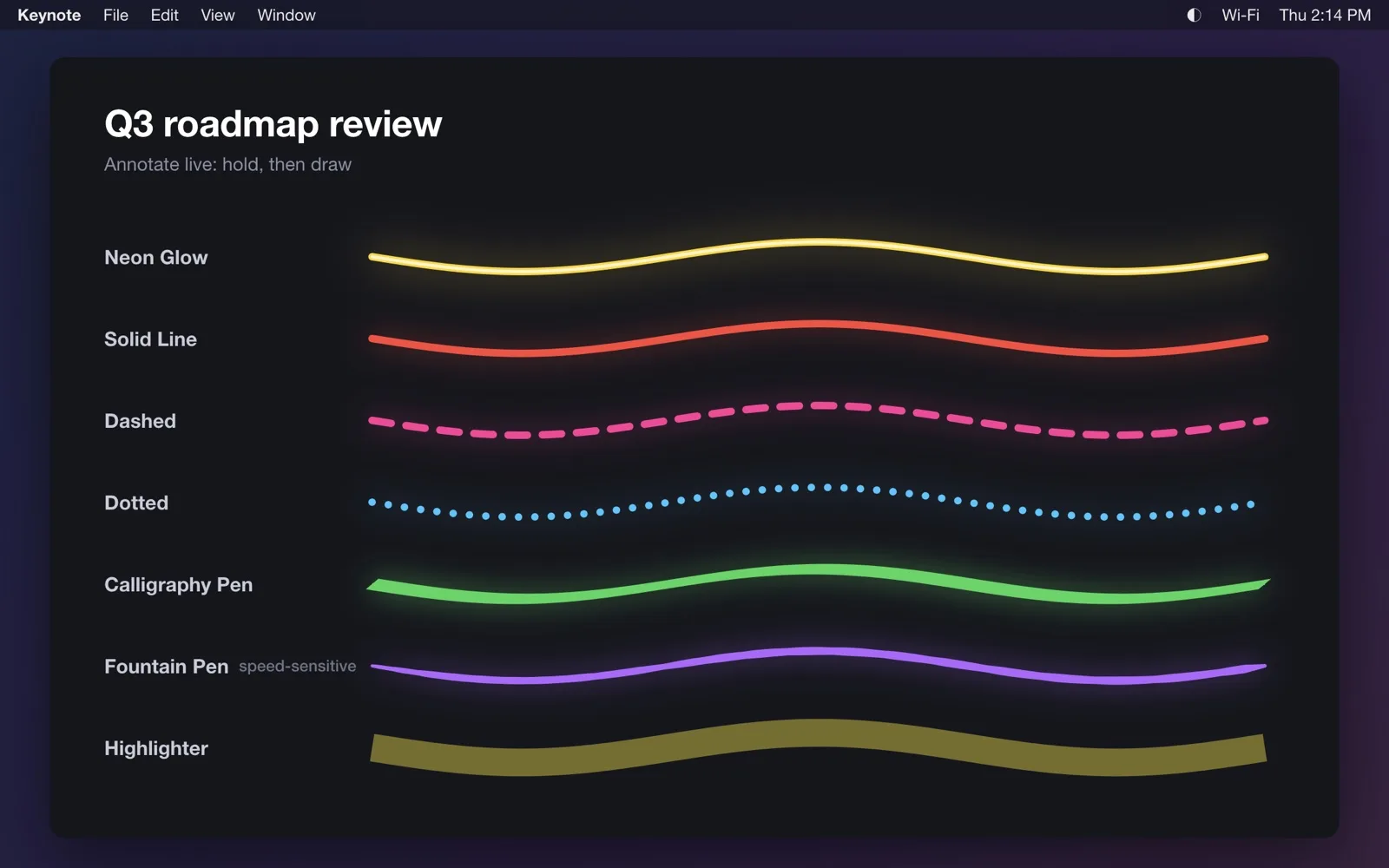
Seven pens (Neon Glow, Solid Line, Dashed, Dotted, Calligraphy Pen, Fountain Pen, Highlighter), any colour, thickness, opacity and glow, and a fade time you choose, or never. Smart shapes straighten underlines and round off circles.
Privacy
Private by design
Smudge never reads your screen. The frosted glass is drawn by macOS itself, which blurs whatever sits behind Smudge's window, so Smudge asks for no Screen Recording, Accessibility or Input Monitoring permission. There's no account, no analytics and no network activity of its own. It sits in the menu bar using about 22 MB of memory and no CPU while idle.
Limits
Good to know
- Patches are pinned to the glass, not to the window under them. Scroll, and the patch stays put.
- The frost shows when you share your whole screen or a display, and in recordings. It doesn't show in a single-window or browser-tab share, because those leave out other apps' windows.
Price
Try everything free for 7 days.
7 days free
Free download. Every feature works for 7 days.
US$9.99 once
Then unlock Smudge with one purchase (launch price). It isn't a subscription and nothing renews.
Reinstalling doesn't restart the trial, and Restore Purchases brings your unlock to another Mac on the same Apple Account.
Evidence
How we know it works
- Smudge's self-test screenshots a dashboard before and after frosting and measures how much text detail is left. An API key kept at most 0.4% of it under every frost style, and a whole dashboard under the panic frost kept less than 1%.
- An early Solid style at 50% opacity let text show through, so every style now keeps a frost layer underneath.
- 66 unit tests and 82 end-to-end checks drive the real app and compare real screenshots. Idle, it uses about 22 MB of memory and 0% CPU (measured on an M1 Pro).
Questions
Smudge, answered.
Does Smudge work on a Mac without a touchscreen?
Yes. Press ⌃⌥D and drag with the mouse or trackpad to frost, or ⌃⌥A to draw. Tap the shortcut to keep it on until Esc, or hold it while you drag. Touch gestures need the touchscreen MacBook Pro.
Will people watching my screen share see the frost?
Yes, when you share your whole screen or a display, and in recordings. The frost is part of what macOS shows on the display. It doesn't appear when you share a single window or a browser tab.
Does it work with Zoom, Google Meet and Microsoft Teams?
Yes, with a full-screen or display share. Smudge needs no plug-in or integration, because any app that captures the screen picks up the frost.
Can I still click things under a patch?
Yes. Patches and ink never take your clicks; the mouse and trackpad reach your apps as usual.
Does Smudge record or read my screen?
No. The blur is drawn by macOS behind Smudge's window. Smudge never captures, stores or sends screen contents and doesn't ask for Screen Recording permission.
Does a patch follow the window if I scroll?
No. Patches are pinned to the glass, which keeps them predictable mid-demo. Wipe one and smudge again if the content moves.
What if a notification pops up mid-demo?
Press ⌃⌥F to frost every display at once. macOS can also hide notifications while you share: System Settings → Notifications → "Allow notifications when mirroring or sharing the display", off.
How do I remove a patch?
Double-tap it with a finger, or double-click it in pointer mode. ⌃⌥Z undoes the last change and ⌃⌥X clears everything.
Can someone read the text through the frost?
No. In our tests an API key kept at most 0.4% of its original detail under every frost style. You can also pick Maximum blur or a Solid Redaction block.
How much does it cost?
It's free for 7 days with everything unlocked, then one purchase of US$9.99 at launch. No subscription, no account.
Can I change the shortcuts?
Yes. Settings → Shortcuts lets you record new ones, turn any off, or restore the defaults. No extra permissions are needed.
What do I need?
A Mac with Apple silicon on macOS 14 or later. Touch gestures need the touchscreen MacBook Pro on macOS 27.
Guides
- How to hide sensitive information when you share your screen on a Mac
- How to blur part of your screen in a Zoom, Google Meet or Teams screen share
- How to hide notifications while you share your screen on a Mac
- How to draw on your screen during a presentation on a Mac
- The touchscreen MacBook Pro: what touch does on a Mac, and apps built for it
- Building a privacy overlay that never reads your screen
Your next demo, without the leak.
For the touchscreen MacBook Pro, and every other Mac with Apple silicon.