
How to draw on your screen during a presentation on a Mac
Circle, underline and point at things live while you present or share your screen on a Mac: with a finger on the touchscreen MacBook Pro, or a shortcut and your trackpad on any Mac.
To draw on your screen while you present on a Mac, you need either the annotation tools inside your meeting app or a system-wide drawing app that works on top of everything. Zoom has annotation built into its share toolbar. A system-wide app works in any app and in any meeting, and anyone watching a full-screen share sees the ink.
We built drawing into Smudge, our Mac app, mostly because pointing at things with a cursor on a call is miserable. “The number in the top right, no, further right” is a sentence nobody needs to say again. Here’s how it works with a finger and with a trackpad.
With a finger on the touchscreen MacBook Pro
Hold your finger on the screen for about a third of a second, then draw. A quick swipe makes a frosted privacy patch, so the short hold is what tells Smudge you want ink. Circle the number, underline the line, draw an arrow at the peak of the chart.
To point without drawing, hold and lift. Smudge pings that spot with a few “look here” rings that fade on their own.
If you’d rather draw with a swipe and frost with a hold, you can swap the two in Settings.
On any Mac: one shortcut
No touchscreen? Press ⌃⌥A and drag with your mouse or trackpad.
- Tap the shortcut and drawing stays on until you press Esc, press the shortcut again, or stop drawing for 1.5 seconds (you can change that).
- Hold the shortcut to draw while you hold it. Let go, and the pointer clicks normally again.
A small pill at the top of the screen tells you when the pointer is drawing, so you don’t click a button and get a scribble. Every shortcut can be changed in Settings → Shortcuts.
Choose a pen
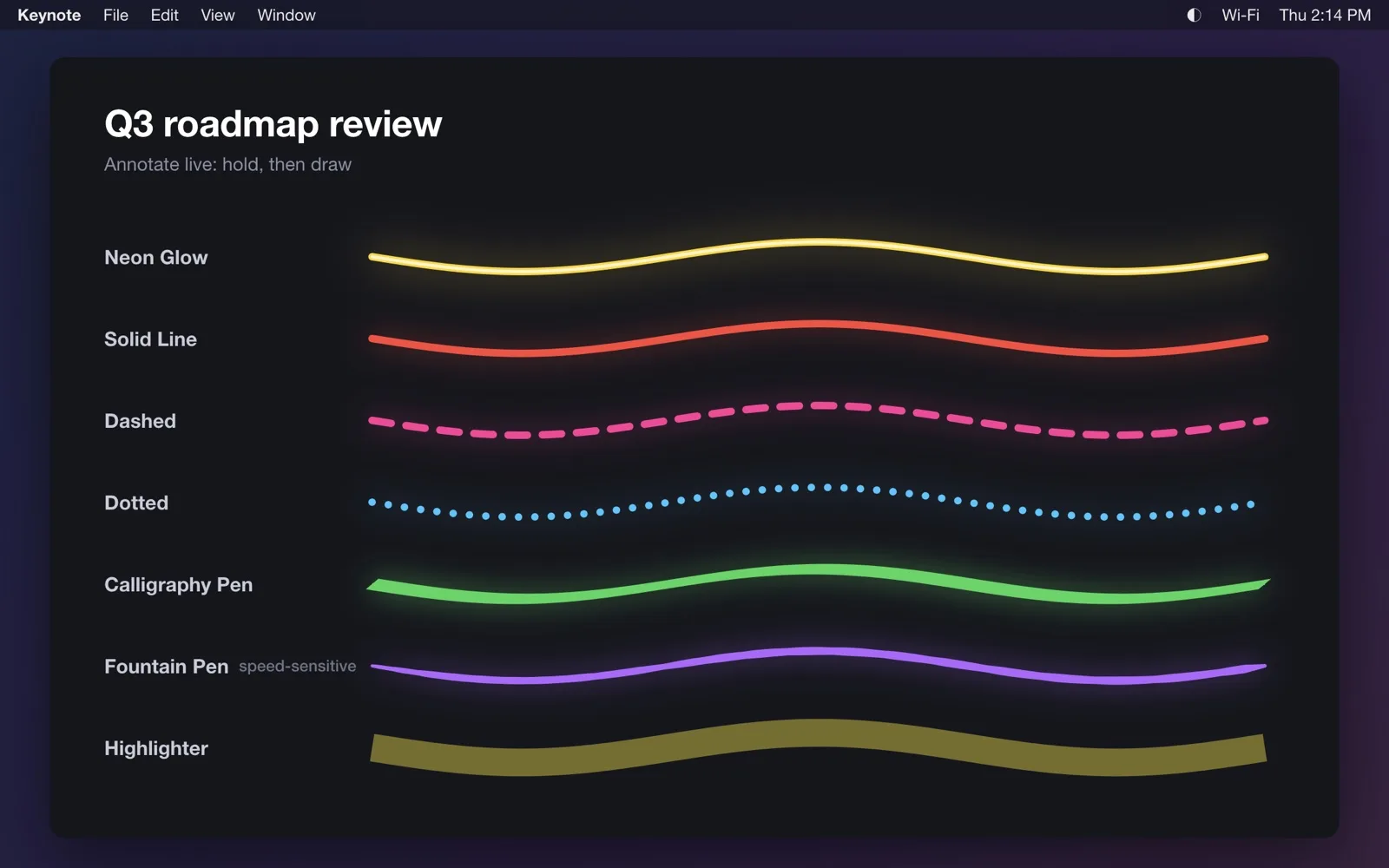
Smudge has seven pens, and they read differently on different backgrounds:
- Neon Glow stands out on dark slides and dashboards.
- Solid Line is plain and precise, good on busy screens where a glow would add noise.
- Dashed and Dotted work for “this goes here” lines and rough boundaries.
- Highlighter suits documents and code, where you want to mark text without covering it.
- Calligraphy Pen and Fountain Pen feel more like handwriting. The fountain pen gets thicker when you draw slowly.
Colour (eight presets or any colour), thickness, opacity and glow are all adjustable.
Smart shapes
Nobody draws a clean circle on a trackpad. Smart shapes straighten your underlines and round off your circles once you finish the stroke, so a wobbly loop around a figure ends up looking deliberate.
Ink that fades
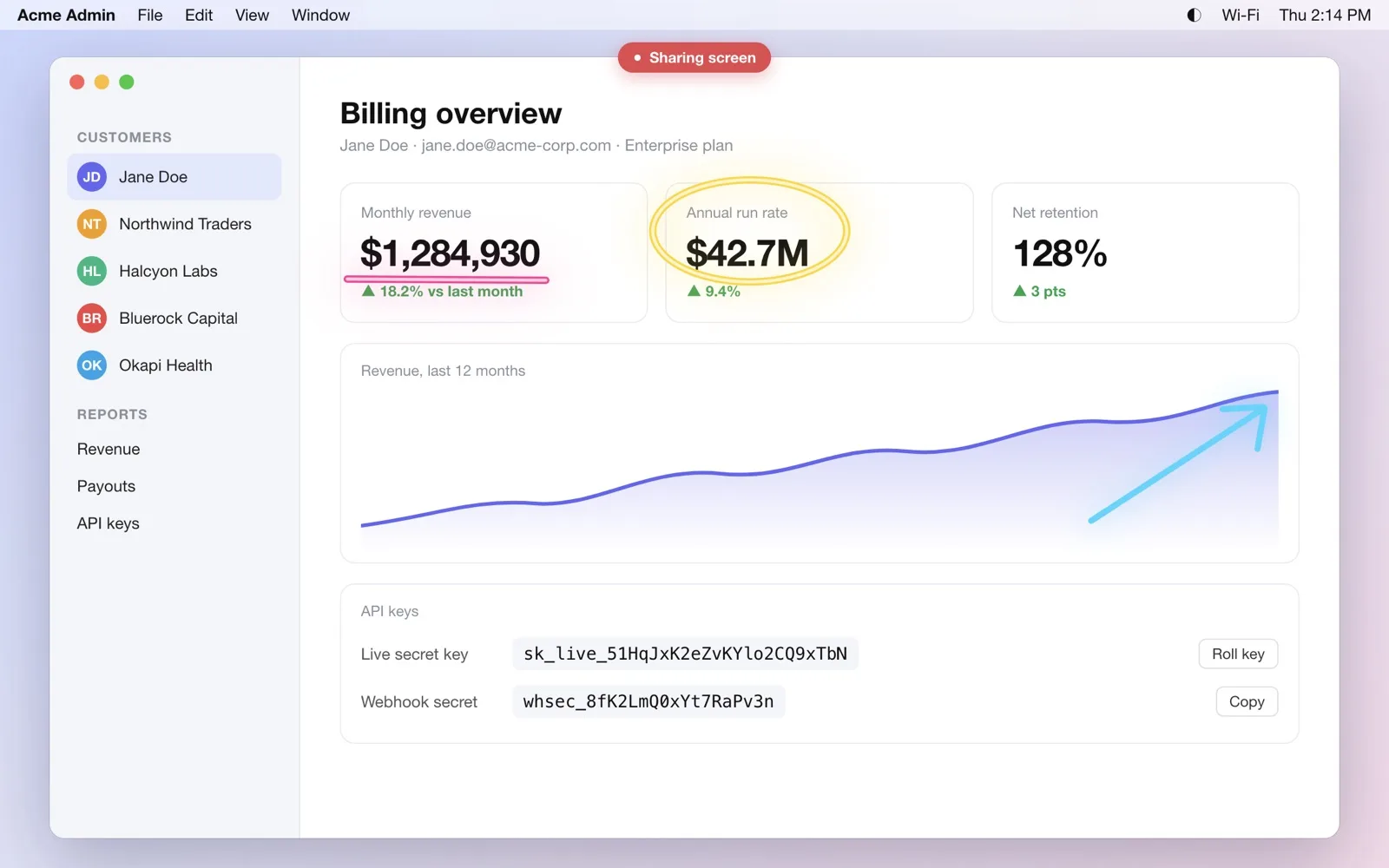
By default the ink fades after 3 seconds. That turns out to matter more than any pen style: you circle the number, say what you need to say, and by the time you move on the screen is clean again. No clearing, no “let me just erase that”. If you’d like it to stay longer, set a longer fade or turn fading off in Settings. ⌃⌥X clears everything on screen at once.
Will people on the call see it?
Yes, in a full-screen or display share and in recordings. The ink is drawn on the display itself, so Zoom, Google Meet, Microsoft Teams and QuickTime capture it like anything else on screen. It won’t show in a single-window or tab share, which only captures that one window.
If you have the new touchscreen MacBook Pro and wonder what else touch is good for, we wrote about what touch does on a Mac, and apps built for it.
Questions, answered
- Can I draw on my Mac screen during a Zoom call?
- Yes. Zoom has its own annotation tools inside a share, and system-wide apps such as Smudge draw on top of any app, so the ink shows in full-screen shares in Zoom, Meet or Teams.
- Does the ink stay on screen?
- In Smudge it fades after 3 seconds by default, so the next slide stays clean. You can set a longer time, or never, in Settings.