
How to hide notifications while you share your screen on a Mac
The macOS setting that keeps notification banners out of screen shares, how Focus and Slack's own settings help, and what to do about the message that still slips through.
Open System Settings → Notifications, and under Notification Center turn off Allow notifications when mirroring or sharing the display. That’s the whole fix for banners: with it off, macOS keeps notifications off the screen while you share or mirror it.
It’s worth checking even if you think it’s already off. Apple’s help page describes it as the switch to pause or allow notifications while you share the display, and some setups turn it on, for instance to get notifications back while an external display is connected.
Turn on a Focus for the call
A Focus such as Do Not Disturb silences notifications altogether, sound included, which the sharing setting doesn’t promise. Open Control Center, click Focus and pick Do Not Disturb, ideally for one hour so it switches itself off afterwards.
Pause Slack and Teams in the app
Chat apps have their own switches too:
- Slack: click your profile picture and choose Pause notifications, then pick how long.
- Microsoft Teams: set your status to Do not disturb.
What these settings don’t cover
All of the above stop new banners. None of them hide what’s already on screen:
- A Slack or Teams window open beside your demo shows its latest messages.
- Badges on the dock still show unread counts.
- A browser tab title can carry a message preview or an inbox count.
Close what you don’t need before you share, or share a single window so the rest stays out. There’s more on that trade-off in how to hide sensitive information when you share your screen.
The panic button
Something still gets through now and then: a calendar alert from an app you forgot, a message arriving in a window you thought was hidden. In Smudge, our Mac app, ⌃⌥F frosts every display at once. Press it again to clear. It takes one key press, before you’ve even worked out where on screen the message landed.
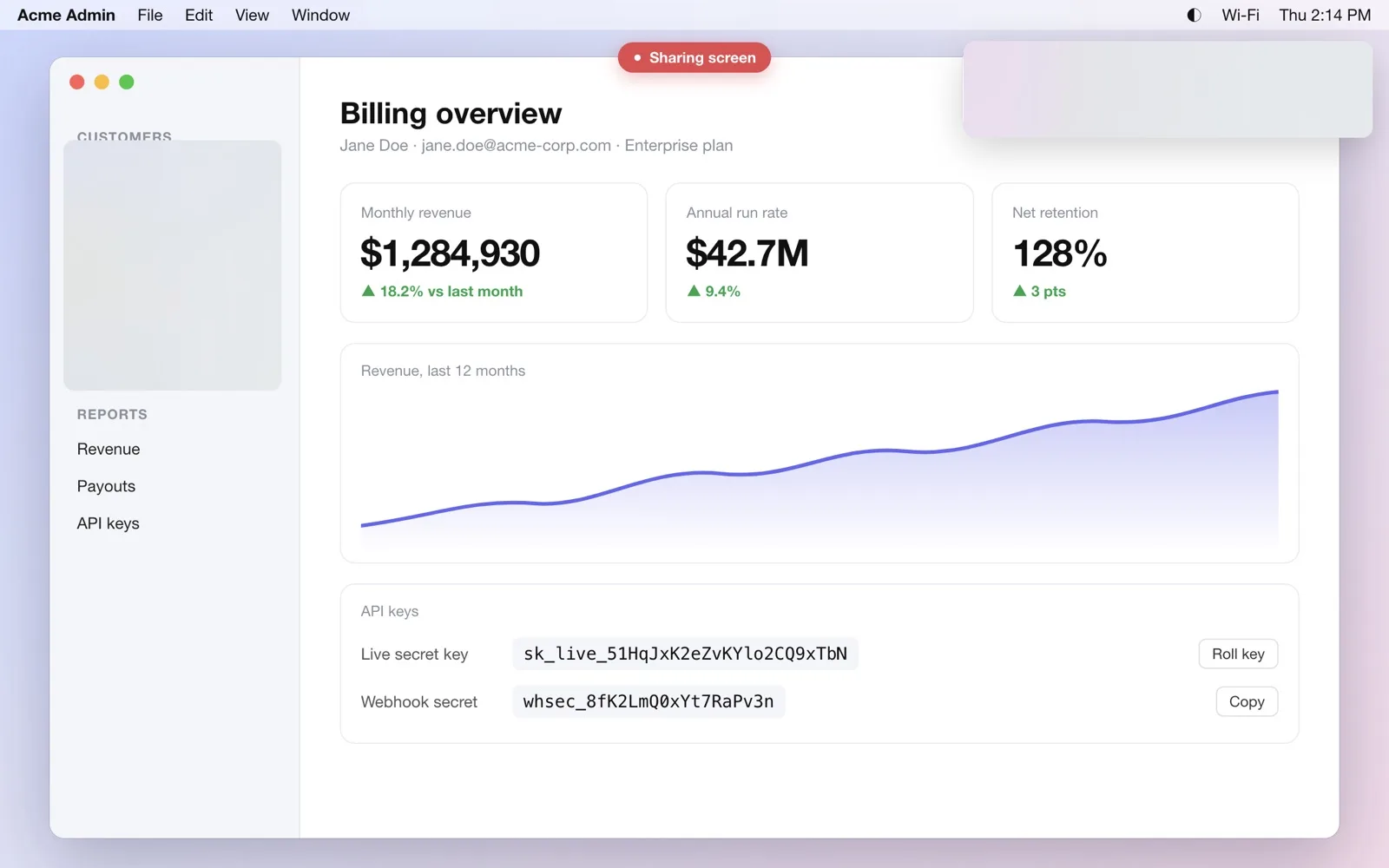
The frost shows in full-screen and display shares and in recordings. It doesn’t show in a single-window share, which leaves out other apps’ windows anyway.
To cover one area rather than the whole screen, see how to blur part of your screen in a Zoom, Meet or Teams share.
Questions, answered
- Where is the macOS setting to hide notifications during screen sharing?
- System Settings, then Notifications. Near the bottom, turn off 'Allow notifications when mirroring or sharing the display'.
- Why do I still see Slack messages while sharing?
- The macOS setting hides system banners. Messages that are already on screen inside Slack, or previews in a browser tab, are part of the app's window and stay visible. Close or cover them; Smudge's Control-Option-F frosts every display at once.