
The touchscreen MacBook Pro: what touch does on a Mac, and apps built for it
What a finger can do on the touchscreen MacBook Pro with macOS 27, how existing Mac apps respond to touch, and what an app designed for touch from the start feels like.
On the touchscreen MacBook Pro, a finger does most of what you’d expect from a phone: you swipe to scroll, pinch to zoom, drag things around and tap buttons. Most existing Mac apps work with it straight away, because macOS turns touches into clicks. Apps written for touch can go further, with gestures designed for a finger rather than a pointer.
Here’s what Apple shipped, how ordinary apps behave, and where touch is better than the trackpad, using the app we built for it as the worked example.
What did Apple ship?
Apple announced the MacBook Pro with PROLED XDR Display on 28 October 2026, the first Mac with touch, and it went on sale on 6 November. It comes in 14-inch and 16-inch sizes with M5 Pro or M5 Max and runs macOS 27, where touch support is built in.
Apple’s examples are everyday ones: scrolling a webpage with a swipe, pinching to zoom a photo, dragging slides between presentations, and double-tapping a window to fill the screen or flicking it to tile it. The touch sensor is built into the display panel rather than layered on top, which Apple says cuts latency. The hinge was redesigned to stay steadier while you touch the screen, and the keyboard and trackpad work as before alongside it.
How do existing apps respond to a finger?
Better than you might expect. According to Apple, many existing apps work with touch right away because macOS translates touches into clicks. Standard buttons, menus, sliders and lists respond to a tap as if you’d clicked them.
What a plain app doesn’t get is anything beyond a click or a drag. A finger can rest, swipe, hold and lift, and those differences mean nothing to an app that only hears clicks. Apps that adopt macOS 27’s updated gesture support can tell them apart and give each one a job.
Where does touch beat the trackpad?
Pointing at what you can already see. With a trackpad you find the cursor, move it across the screen, and then act. With a finger you just reach for the thing. For most work the difference is small. For some it’s the whole point:
- Tapping a control in the Dynamic Island or a toolbar without moving the cursor away from your work.
- Drawing or sketching across the whole screen instead of inside the trackpad’s small area.
- Covering something on screen fast, during a demo, before anyone reads it.
That last one is why we made Smudge.
Designing Smudge for touch
Smudge puts frosted glass over sensitive things on screen while you share it: an API key, a revenue figure, a chat popup. On the touchscreen MacBook Pro you reach up and swipe across the number. It takes about half a second, and your cursor stays exactly where it was in your demo.
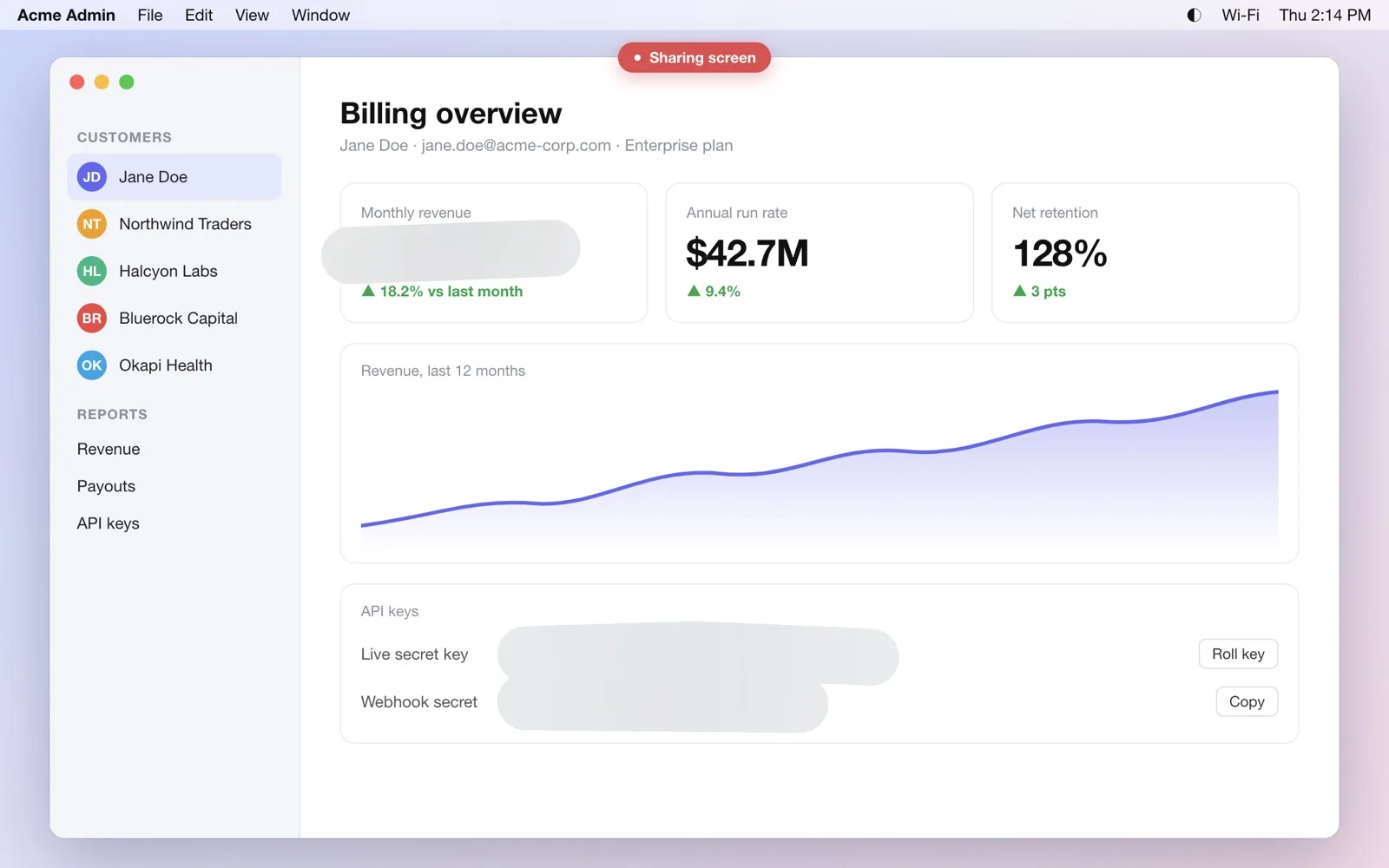
A few decisions came straight out of designing for a finger:
Swipe versus hold. A swipe makes a frost patch, because hiding something is the urgent job and should be the fastest gesture. Holding for about a third of a second first, then drawing, makes glowing ink instead, for circling and underlining. Hold and lift pings a spot with “look here” rings. Double-tap a patch to wipe it. If you think the other way round, the swipe and hold can be swapped.
The mouse has to keep working. This was the hard part. A window that catches touches on a Mac can also catch clicks, and an overlay that eats your clicks in the middle of a demo is worse than useless. So in touch mode Smudge leaves a small hole around the pointer, and the hole follows the pointer as it moves. Your clicks, scrolls and hovers always land in the app underneath, while your finger still reaches Smudge everywhere else.
A one-time Touch Check. Smudge measures once whether the Mac routes touches separately from the pointer. If it does, the hole isn’t needed, and Smudge drops it.
We go deeper into the windows, the blur and how we measured it in building a privacy overlay that never reads your screen.
No touchscreen?
Most Macs don’t have one, so everything in Smudge also works with the pointer. Press ⌃⌥D and drag to frost, or ⌃⌥A and drag to draw, then press Esc to go back to normal clicking. The details are in how to draw on your screen during a presentation on a Mac.
Questions, answered
- Do existing Mac apps work with touch on the new MacBook Pro?
- Mostly, yes. Standard buttons and controls respond to a finger, and taps on other content arrive as clicks. Apps that adopt macOS 27's touch support can do more, such as gestures designed for a finger.
- What is touch better at than a trackpad on a Mac?
- Pointing at something you can see without moving a cursor there first: tapping a control, or reaching up to cover a number on screen during a demo, which takes half a second and leaves the cursor where it was.