
How to blur part of your screen in a Zoom, Google Meet or Teams screen share
Zoom, Meet and Teams can blur your camera background but not your shared screen. Here's how to blur or hide part of the screen anyway on a Mac, and which method shows up for viewers.
Zoom, Google Meet and Microsoft Teams blur your camera, not your screen. The blur button in each one is for the room behind you. None of them can blur a box inside the screen you’re sharing, so to hide part of it you either share less or put something over it.
Here are both ways on a Mac, and how to check what your viewers actually see.
Option A: share less
The simplest fix is to leave the sensitive part out of the share.
- Zoom: Portion of Screen. In the share window, open the Advanced tab and choose Portion of Screen. A frame appears that you drag and resize over the area you want to show. Everything outside the frame stays private.
- A single window. All three apps let you share one window instead of the whole screen. Viewers see that window only.
- A single tab. Meet in Chrome can share one browser tab.
This works well when the sensitive thing is somewhere else on screen. It doesn’t help when it’s inside what you’re sharing: the API key in the middle of the settings page you’re demoing is still in the window, and still in the share. Switching apps mid-demo is clumsy too, because the share is tied to one window or one rectangle.
Option B: a live overlay
The other way is to put something on top of the sensitive area. That’s what Smudge, our Mac app, does. It puts a frosted-glass patch over whatever you choose.
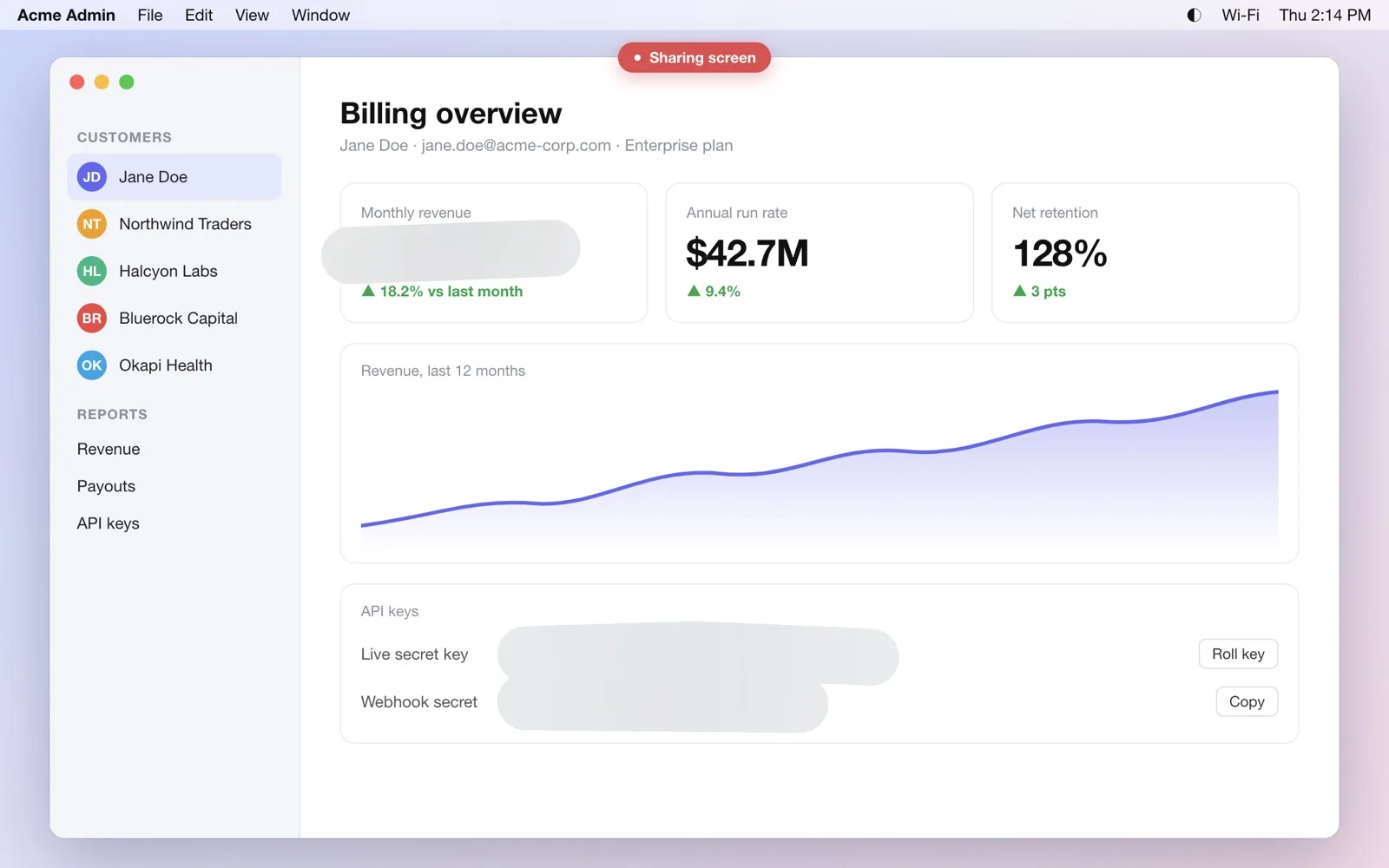
On a touchscreen MacBook Pro you swipe a finger over the area. On any other Mac you press ⌃⌥D and drag with the mouse or trackpad. The patch appears right away, and your mouse keeps clicking through it to the app underneath, so you don’t have to stop presenting.
Viewers see it because the frost is part of what macOS draws on the display. Zoom, Meet and Teams capture the display when you share your whole screen, so they pick it up with no plug-in. The same goes for QuickTime and any other screen recorder.
Test it before the call
Don’t take anyone’s word for what viewers see, ours included. Two quick checks:
- Record five seconds with QuickTime. Press ⌘⇧5, record the whole screen, frost something, stop, and watch it back. What’s in the recording is what a full-screen share sends.
- Share with yourself. Start a meeting alone, share your screen, and look at the preview, or join from your phone.
The limits
- Window and tab shares leave the frost out. They capture one window, and Smudge’s patch is a different window on top. If you need the frost, share the whole screen or a display.
- Patches don’t follow scrolling. A patch is pinned to the glass. Scroll the page and the patch stays where it was while the content moves on. Wipe it and smudge again.
If the thing you’re worried about is a message popping up mid-call, start with hiding notifications while you share. For the full list of options, see how to hide sensitive information when you share your screen on a Mac.
Questions, answered
- Is there a blur tool inside Zoom screen sharing?
- Zoom's blur applies to your camera background. For the shared screen, Zoom can share a portion of the screen or a single window, which leaves the rest out, but it can't blur an area inside what you share.
- Will viewers see a blur I add with another app?
- They will if you share your whole screen or a display, because the overlay is part of what the screen shows. In a window or tab share they won't, since only that window is captured.