
How to hide sensitive information when you share your screen on a Mac
Seven ways to keep API keys, revenue, client names and notifications out of a screen share on a Mac, from free built-in settings to frosting the screen live with Smudge.
The safest screen share is one with less on it. Share a single window instead of the whole screen, keep notifications out, and cover whatever you can’t avoid showing.
That’s the short version. The longer one is below, because every option hides something different and misses something else, and the gaps are where a live API key or a client’s name ends up in someone’s meeting recording.
Should you share a window instead of the whole screen?
If the demo lives in one app, yes. Zoom, Google Meet and Microsoft Teams all let you pick a single window (or, in Meet, a single browser tab) instead of the whole screen. Viewers see that window and nothing else: no dock, no other apps, no banners sliding in from the corner.
The cost shows up the moment you need a second app. Switch to the terminal or the docs and your viewers are still looking at the window you shared, or at a frozen frame of it. You end up stopping the share, picking a new window and starting again while everyone waits.
There’s a quieter catch too. Anything inside the window still shows. A window share of your admin panel happily broadcasts the revenue figure at the top of it.
How do you hide notifications while sharing?
macOS has a setting for exactly this. Open System Settings → Notifications, and under Notification Center turn off Allow notifications when mirroring or sharing the display. With it off, banners stay off the screen while you share.
Turning on a Focus such as Do Not Disturb before the call helps as well, and it silences the sound. We go through both, plus Slack’s and Teams’ own settings, in how to hide notifications while you share your screen on a Mac.
Neither setting touches what’s already on screen. A Slack window open beside your demo shows its latest message to everyone, banner or not.
Clean the stage before the call
Five minutes of tidying removes most of the risk:
- Hide desktop icons. Files named
contract-final-v3.pdfsay more than you’d think. - Close unrelated tabs. Tab titles carry inbox counts, customer names and search queries.
- Use a separate browser profile for demos, with no bookmarks bar, no autofill and no signed-in personal accounts.
- Demo on a demo account. Fake customers and round numbers can’t leak. This is the single best habit if your product allows it.
Keep secrets out of terminals and .env files
Developers leak keys on calls more than anyone, usually by opening the wrong file. Load secrets from a secret manager or the macOS Keychain rather than a plain .env file, so there’s nothing to show by accident. And never cat a .env on a call, even “just for a second”. Plenty of calls are recorded.
Frost what’s left, live
Some things can’t be avoided: the dashboard is the demo, and the revenue number is right there in the corner. This is where we built Smudge. It puts a frosted-glass patch over anything on screen while you share.
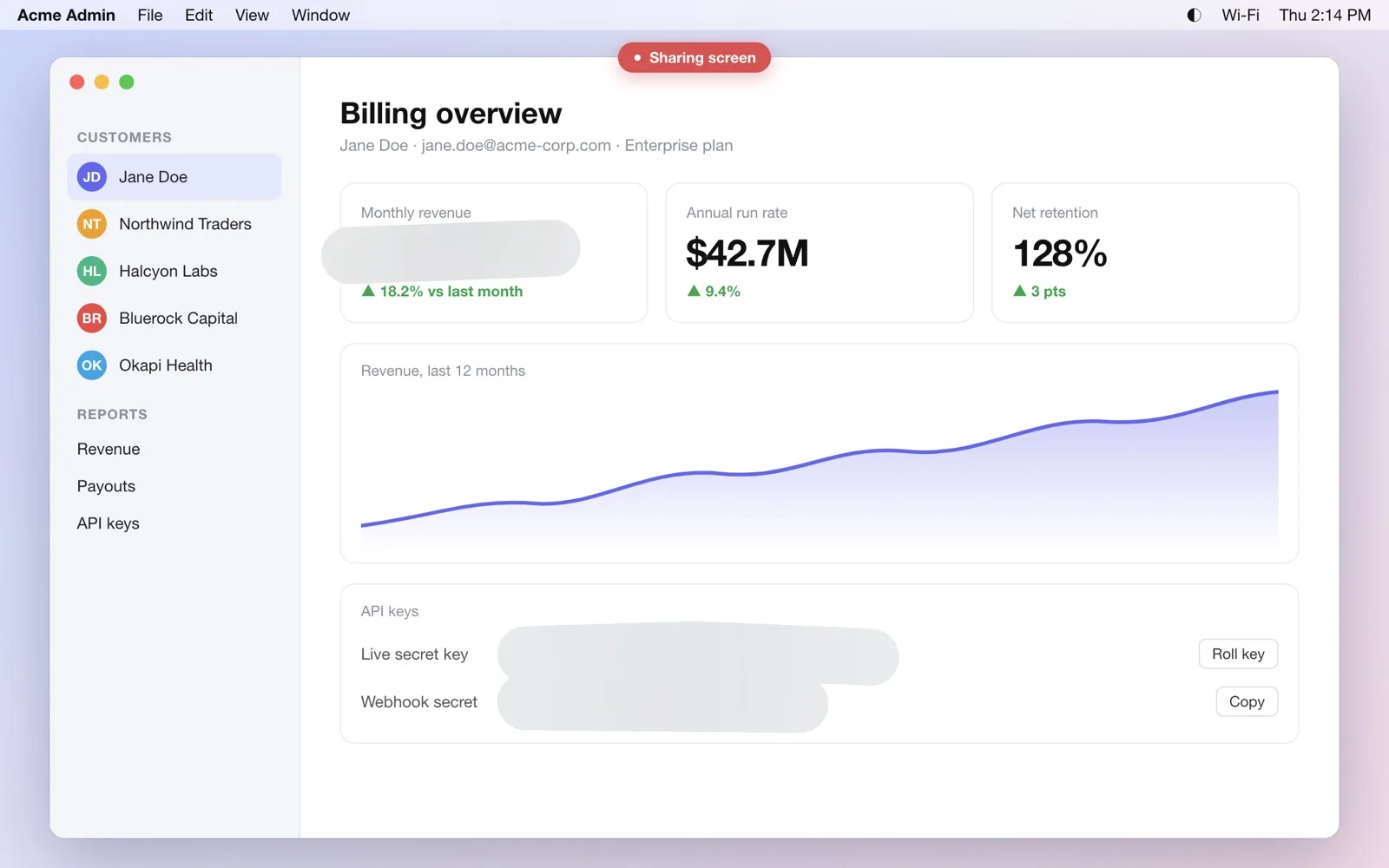
On the touchscreen MacBook Pro, swipe a finger across the number and it’s frosted. On any other Mac, press ⌃⌥D and drag with the mouse or trackpad. Double-tap (or double-click) a patch to wipe it. The frost is part of what macOS draws on the display, so anyone watching a full-screen or display share sees it, in Zoom, Meet, Teams or anything else that captures the screen. Your clicks pass straight through the patch to the app underneath, so you keep demoing.
Two limits are worth knowing. The frost doesn’t show in a single-window or tab share, because those captures leave out other apps’ windows, Smudge’s included. And a patch is pinned to the glass, so if you scroll the content under it, the patch stays where it was.
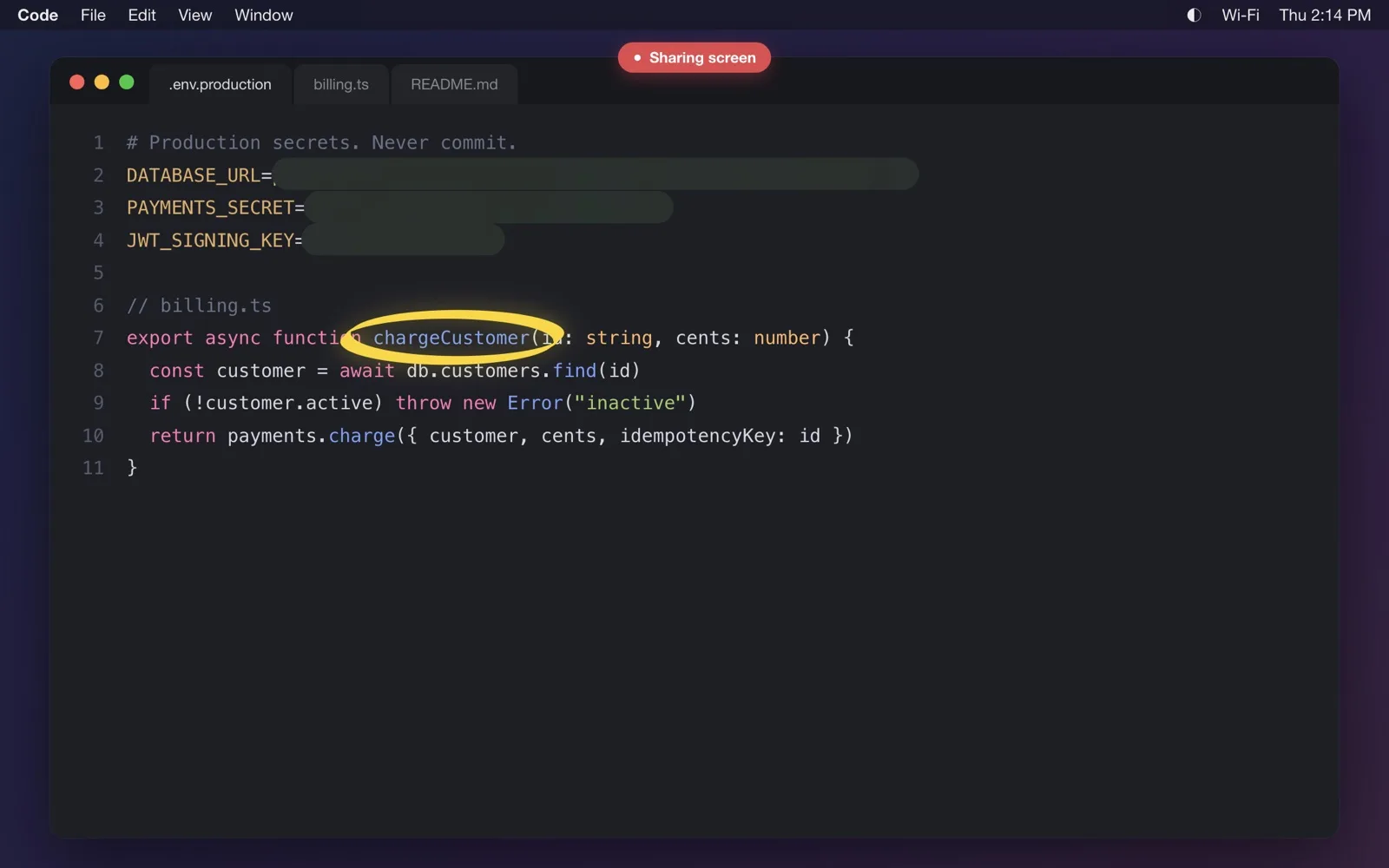
What about the popup you didn’t see coming?
Press ⌃⌥F in Smudge and every display is frosted at once. Press it again to clear. It’s for the message that arrives mid-sentence, before you’ve worked out which corner it’s in.
Which option hides what?
| Option | Hides | Misses |
|---|---|---|
| Window or tab share | everything outside the window | anything inside the window; you can’t switch apps freely |
| Notifications setting | system banners | in-app messages already on screen |
| Browser blur extension | parts of web pages in that browser | native apps, terminals, other browsers |
| Smudge | anything on screen, any app | window or tab shares; content you scroll under a patch |
They stack. A demo account plus notifications off plus Smudge for the one number you can’t fake covers nearly everything.
A 60-second pre-call checklist
- Notifications setting off, or Do Not Disturb on.
- Unrelated apps and tabs closed.
- Desktop icons hidden.
- Demo account signed in, personal accounts signed out.
- No
.envor credentials file open in any editor tab. - Decide what you’ll share: one window, or the whole screen with Smudge ready.
- Record five seconds with QuickTime to see exactly what viewers will see.
If you want to blur something inside a Zoom, Meet or Teams share specifically, read how to blur part of your screen in a screen share.
Questions, answered
- Can Zoom or Google Meet blur part of my screen?
- No. Both blur your camera background, not your screen. To hide part of a shared screen you need to share a single window or tab, or put something over the sensitive area, such as a frosted patch from Smudge.
- Does sharing a single window hide notifications?
- Usually, yes. A window share only captures that window, so banners and other apps stay out. It also hides any overlay you put on top, so tools like Smudge only show in full-screen or display shares.
- How do I stop notifications appearing when I share my screen on a Mac?
- Open System Settings, then Notifications, and turn off 'Allow notifications when mirroring or sharing the display'. Turning on a Focus such as Do Not Disturb before the call also works.